
STEP 01 / 05
Choose Start/End Frame mode
Use saved frames to continue a shot or connect one generated clip to the next.
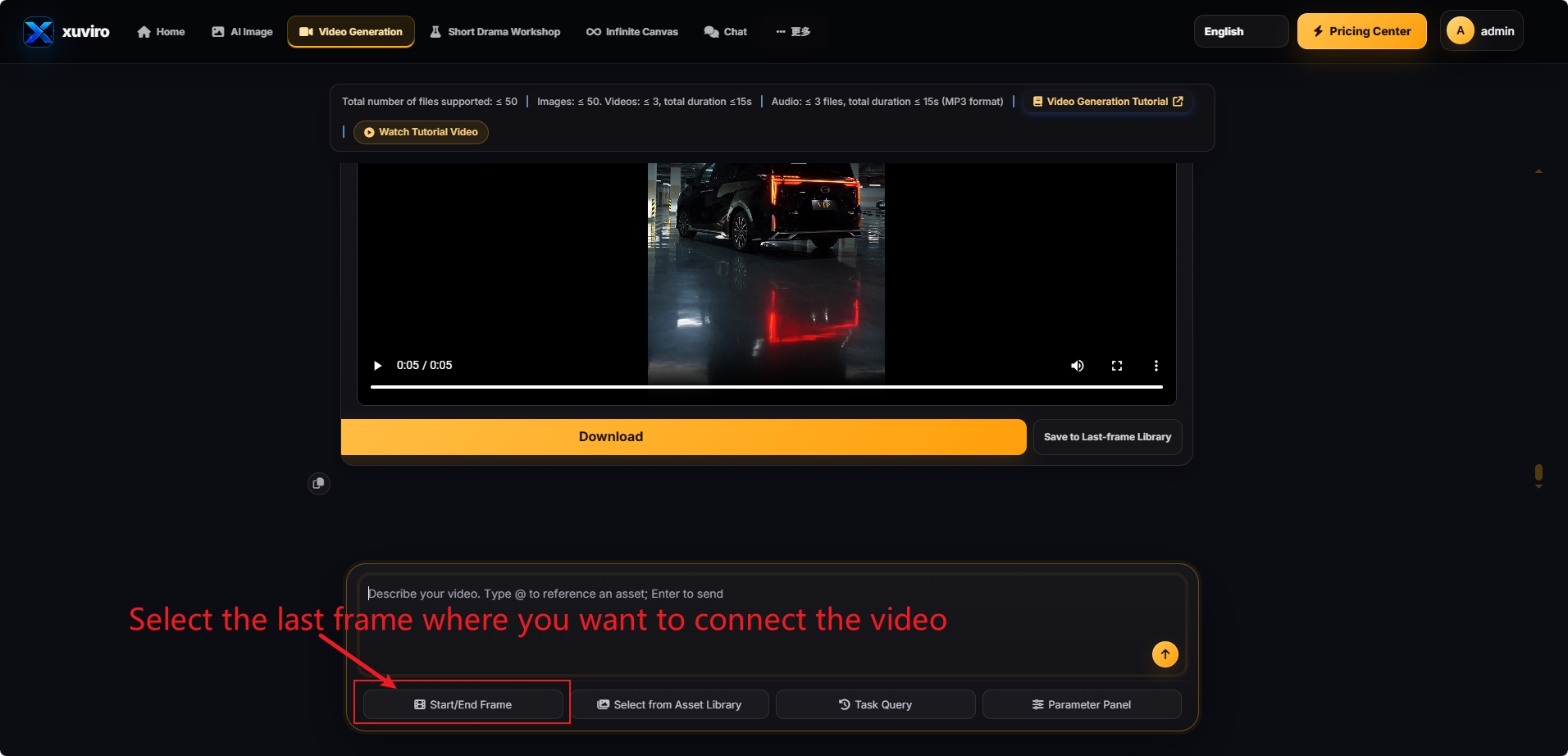
Open Start/End Frame and choose the saved last frame that should lead into the next clip.
Reuse the previous clip's last frame to keep the subject, scene, and motion consistent.
STEP 02 / 05
Select from the Asset Library
Add saved images, videos, or audio files without uploading them again.
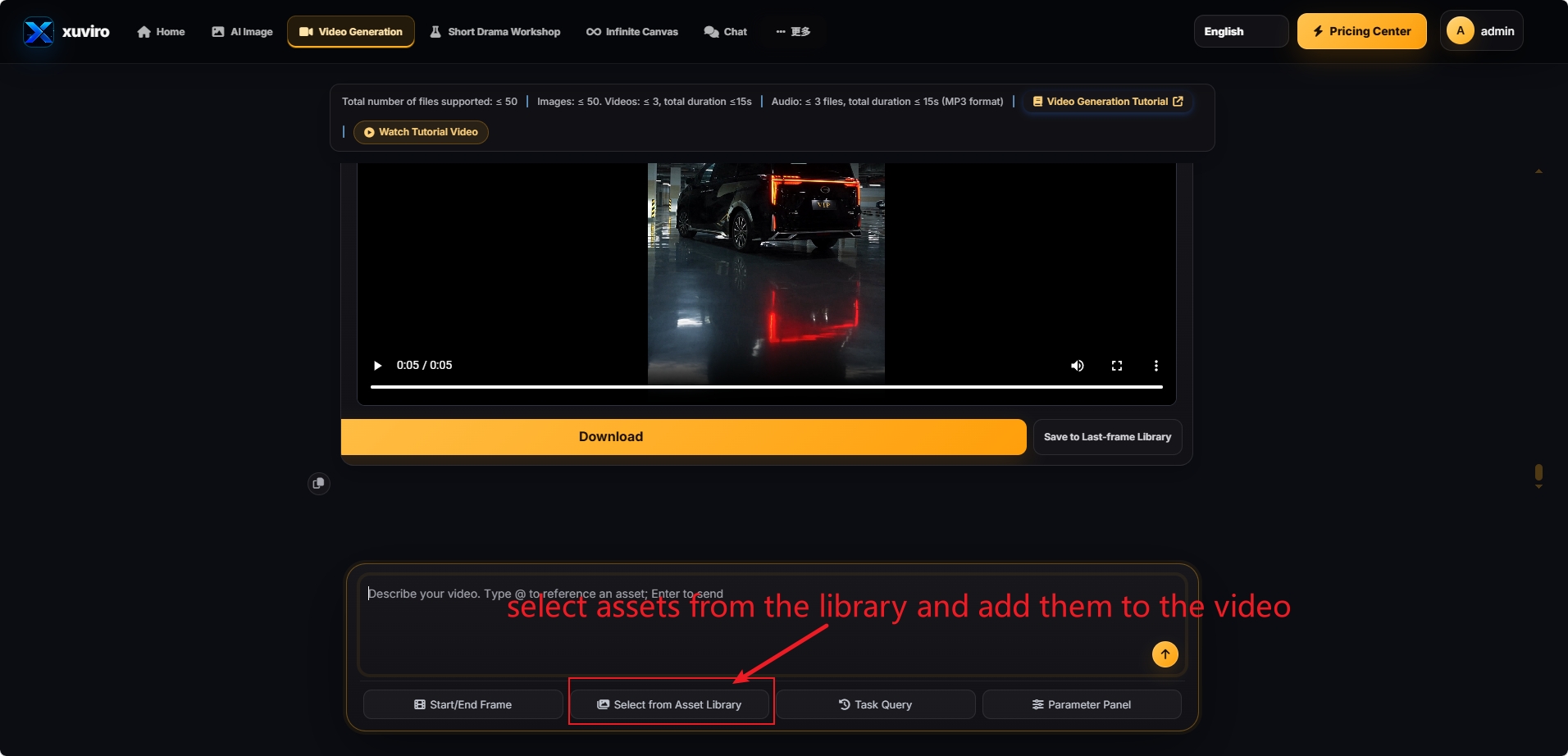
Open Select from Asset Library, browse or search, then choose the materials needed for the video.
Up to 50 files; videos and audio are subject to the limits shown in the interface.
STEP 03 / 05
Reference assets with @
Type @ in the prompt box to open and search the reference asset library.
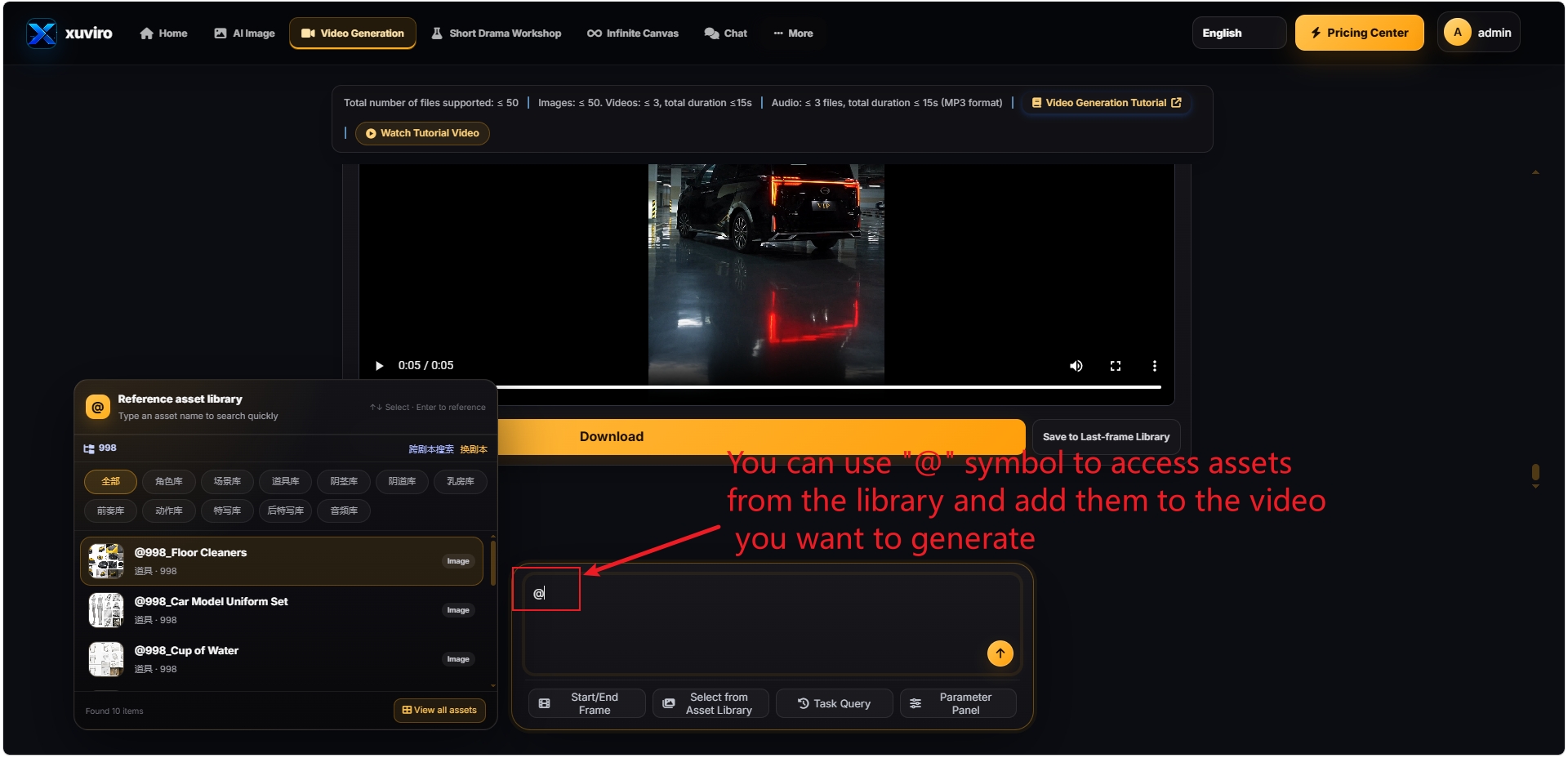
Select a search result to insert its @asset name into the video prompt.
Use @ references when the video must reuse a specific character, scene, prop, or style asset.
STEP 04 / 05
Query video tasks
Use Task Query to find and review current or previous video-generation jobs.
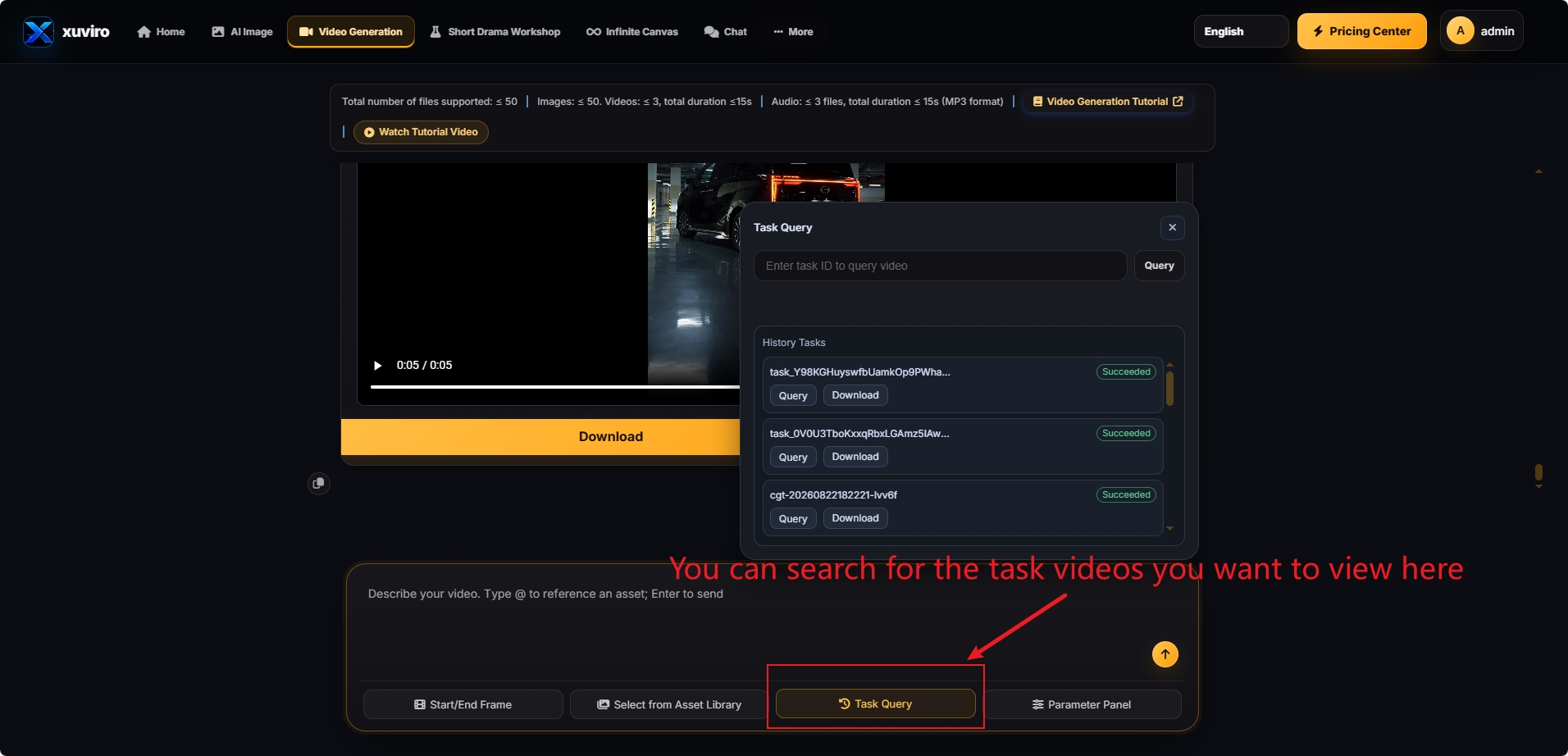
Enter a task ID or select a history item, then click Query.
Completed tasks can be opened or downloaded from the history list.
STEP 05 / 05
Adjust video parameters
Open Parameter Panel before submitting the video-generation request.
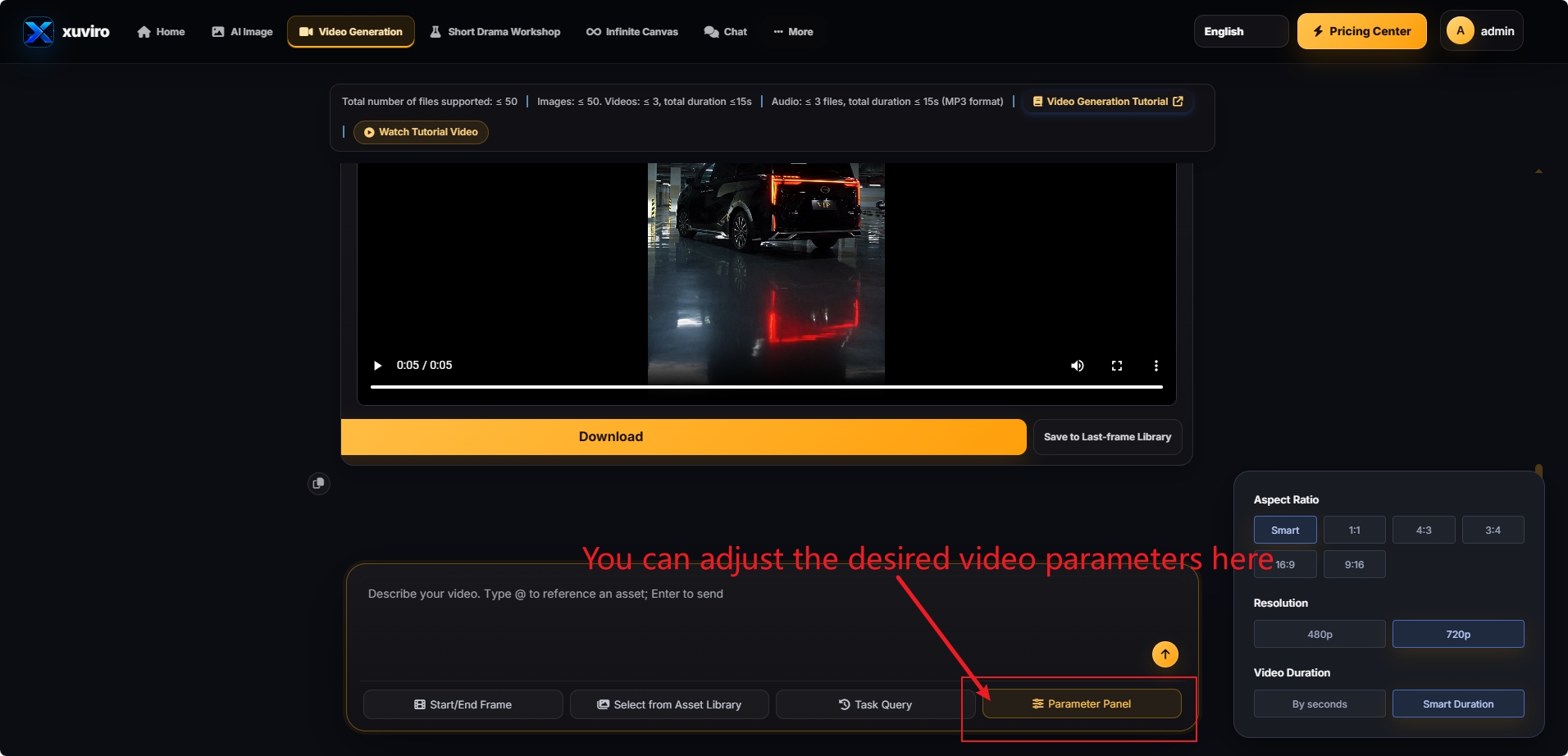
Choose the aspect ratio, resolution, and video duration required for the final output.
Use Smart when unsure, or set exact values for the destination platform.
FINAL CHECK